Add product JSON-LD to PrestaShop (for developers and for your AI agent)
The exact, verified way to put AI-search JSON-LD on a PrestaShop product page — server-side, and multilingual. Do it yourself with the steps below, hand the runbook to your AI agent, or let Store Operators do it for you.
For a developer
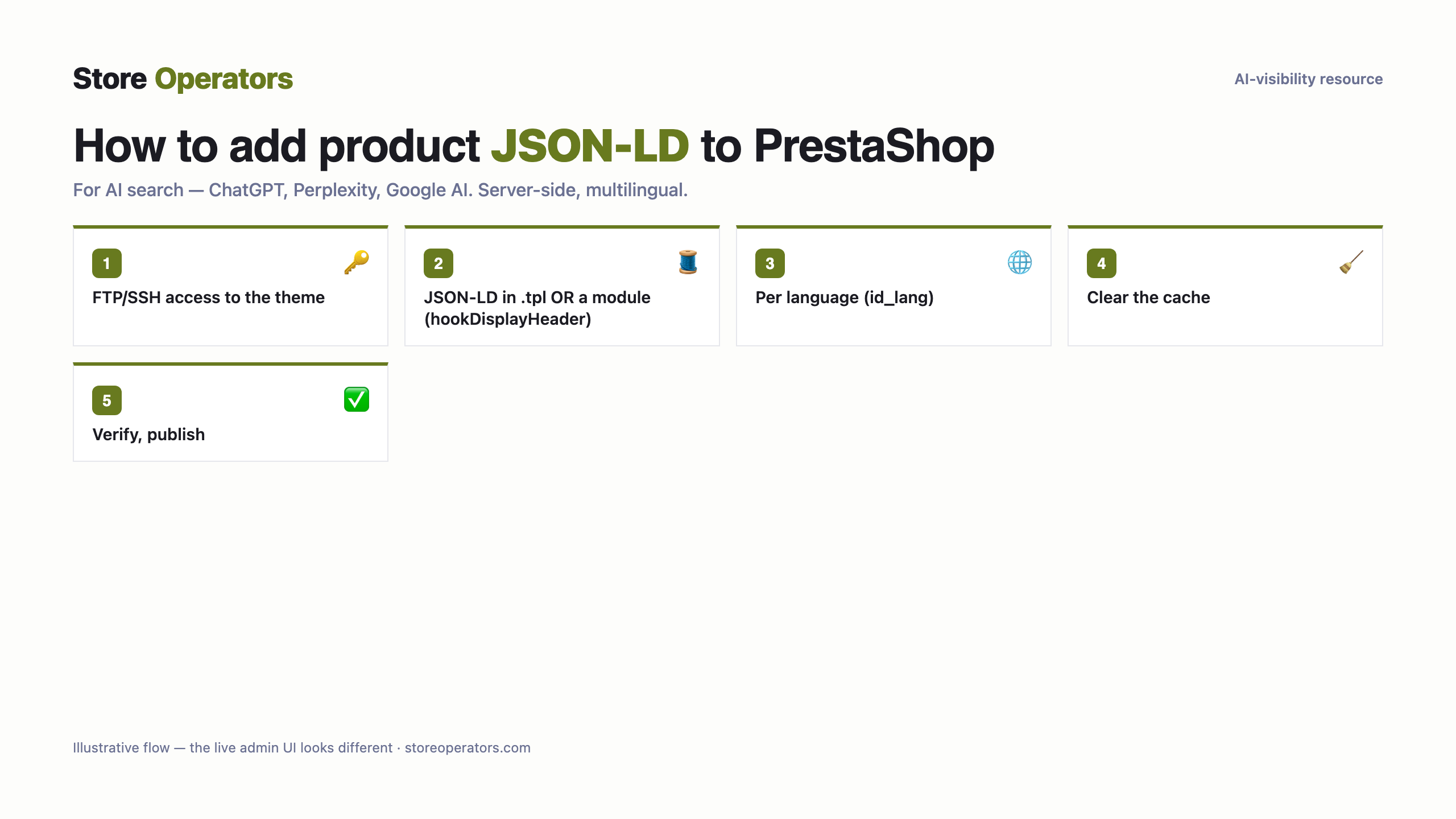
- PrestaShop is self-hosted and the Webservice API is data-only, so add the JSON-LD in the theme over FTP/SSH, or via a small module.
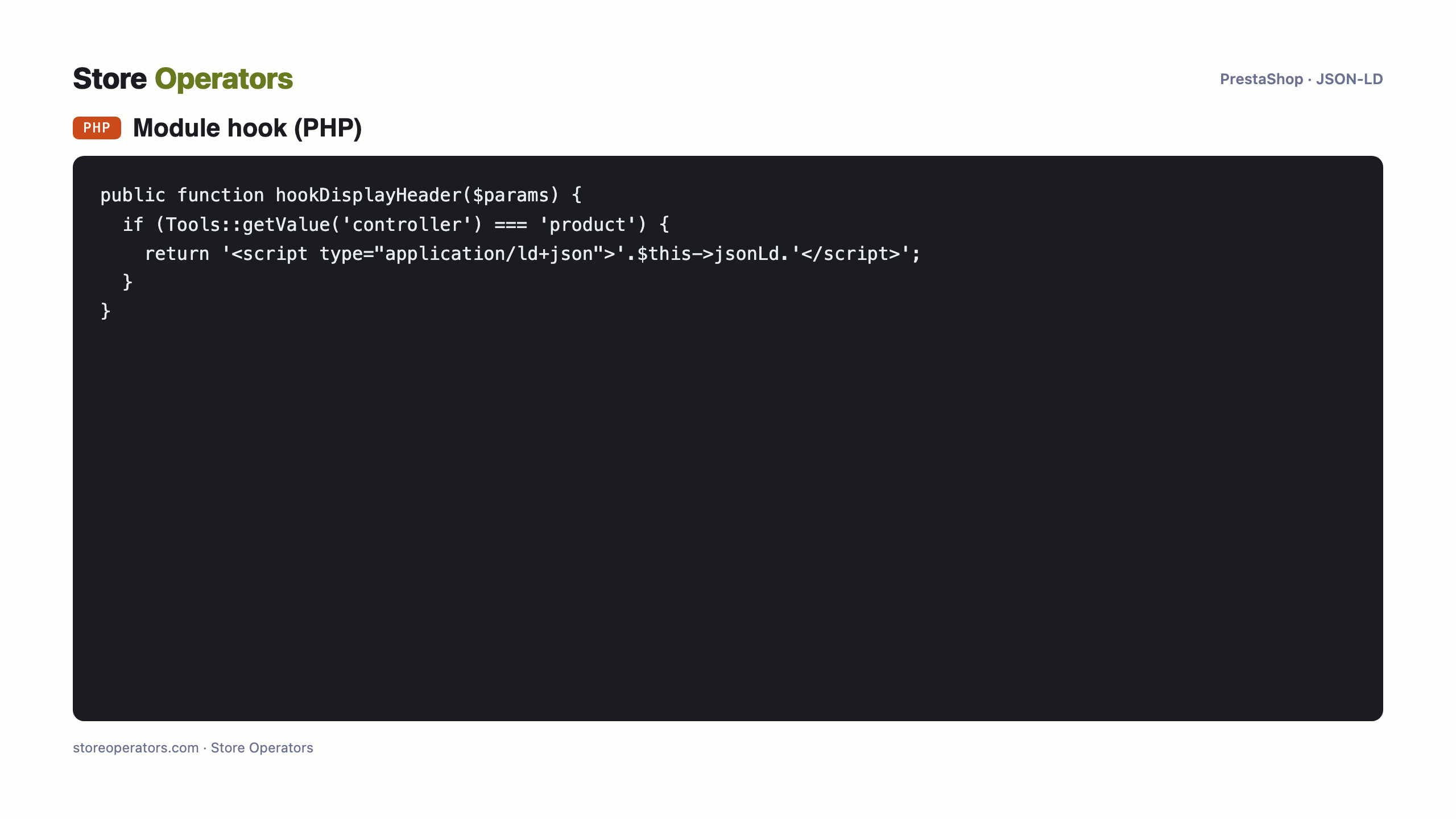
- Either output the `<script type="application/ld+json">` in the product template (.tpl, Smarty), or create a module hooking `displayHeader` (method hookDisplayHeader) that echoes it on product pages only.
- Per language: PrestaShop serves per-language URLs — emit the matching language's JSON-LD (per id_lang).
PrestaShop per-language URLs; output each language's JSON-LD per id_lang.
View source per language URL (clear cache first): application/ld+json present.
The exact code
Prompt for your AI agent — connect PrestaShop & implement
A complete copy-paste prompt for your own AI agent (Claude / ChatGPT). It tells the agent how to connect to your PrestaShop store and implement the JSON-LD for you — with safe-write discipline: backup, preview, verify, and your approval before publishing.
You are helping me add AI-search JSON-LD to ONE product on my PrestaShop store, safely.

SAFETY (follow exactly, in order):
  1. Back up first: duplicate the current theme (or export it) BEFORE any write. No exceptions.
  2. Work on an UNPUBLISHED copy / preview — never edit the live theme directly.
  3. Use a least-privilege token: only the scopes the task needs.
  4. After each change, VERIFY (fetch the page, confirm the JSON-LD renders and is valid).
  5. Do NOT publish. Show the human the preview and the verification, and let the human approve the publish.
  6. Keep the rollback ready: if anything looks wrong, restore the backed-up theme.

CONTEXT: Product URL: https://your-store.example/product/your-product. Store locales: your primary language.

ACCESS:
  FTP/SSH access to the PrestaShop install (theme files), or the ability to install a small module.

TASK:
  1. Take FTP/SSH access (or the module directory).
  2. Add the JSON-LD <script> to the product .tpl, OR add a module that hooks displayHeader (hookDisplayHeader) and echoes it on product pages.
  3. Emit the matching language's JSON-LD per id_lang, clear the cache, verify the source, then have the human publish.

JSON-LD to inject:
{}
Questions people ask their AI
- What is the prompt to connect Claude to PrestaShop to add product JSON-LD?
- Use the runbook on this page — paste it into Claude. It connects to your PrestaShop store with your own credentials and adds the schema.org JSON-LD, with backup, preview, verification and your approval before publishing.
- How do I connect ChatGPT to my PrestaShop store to add schema.org JSON-LD?
- The same runbook works for ChatGPT (or any capable AI agent): it authenticates to your store and injects the JSON-LD server-side, safely, and stops for your approval before publishing.
- Can an AI agent add product JSON-LD to PrestaShop for AI search (ChatGPT, Perplexity, Google AI)?
- Yes — server-side (client-side-only JavaScript is not reliably seen by AI crawlers). Do it with the agent runbook here, hand it to a developer, or have Store Operators do it for you.
Sources
Get found and recommended by AI
Store Operators makes your store AI-visible and agent-ready — from a free audit to a done-for-you data layer and agentic commerce.